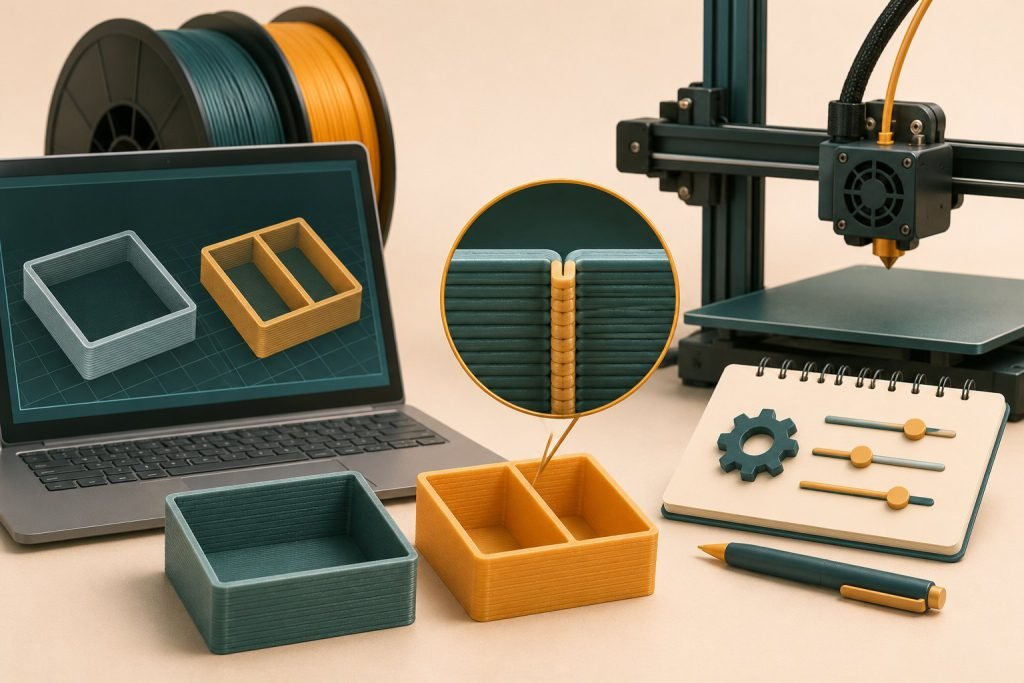
If a wall is absent from the sliced preview, waiting for the printer will not bring it back. Locate the first layer where it disappears and compare the modeled feature with the toolpath the slicer can produce.
Follow the missing feature
- Confirm the correct model scale and installed nozzle profile.
- Inspect the wall at several heights, not only in the solid model view.
- Compare the available perimeter generators or documented thin-wall option.
- Reslice and check that the path is continuous.
- If the feature remains absent, consider thickening it in the model or using an appropriate smaller-nozzle profile.
PrusaSlicer’s documentation distinguishes Classic thin-wall detection from Arachne’s variable-width handling. The Classic checkbox may be disabled under Arachne because that generator handles the problem differently.
The wall appears, but only as one line
That may recover its shape without making it suitable for the original job. Inspect corners and connections, and print a short section to check continuity and handling. Appearance in preview is necessary, but not proof of durability.
Should I enlarge the entire model?
Only if changing every dimension is acceptable. A local wall edit preserves unrelated hole sizes, mating surfaces and overall dimensions. For a replacement component, global scaling can solve one detail while breaking the fit elsewhere.
Choose the smallest effective change
Keep a screenshot of the original missing path and the corrected preview. If a nozzle change is needed, read the nozzle-size guide and reslice with the matching hardware profile. Do not solve a missing feature by entering a nozzle size that is not installed.